
Promotions are essential for eCommerce success — they drive customer engagement, boost sales, and reinforce brand loyalty. In a competitive online marketplace, strategically designed promotions create urgency, encourage repeat purchases, and inspire customers to explore new products or increase their order value. They also allow businesses to tailor marketing efforts to specific customer segments, delivering more personalised experiences.
Salesforce Commerce Cloud Business Manager provides a powerful, flexible interface for creating and managing these promotions.
Navigating to Promotions in Business Manager
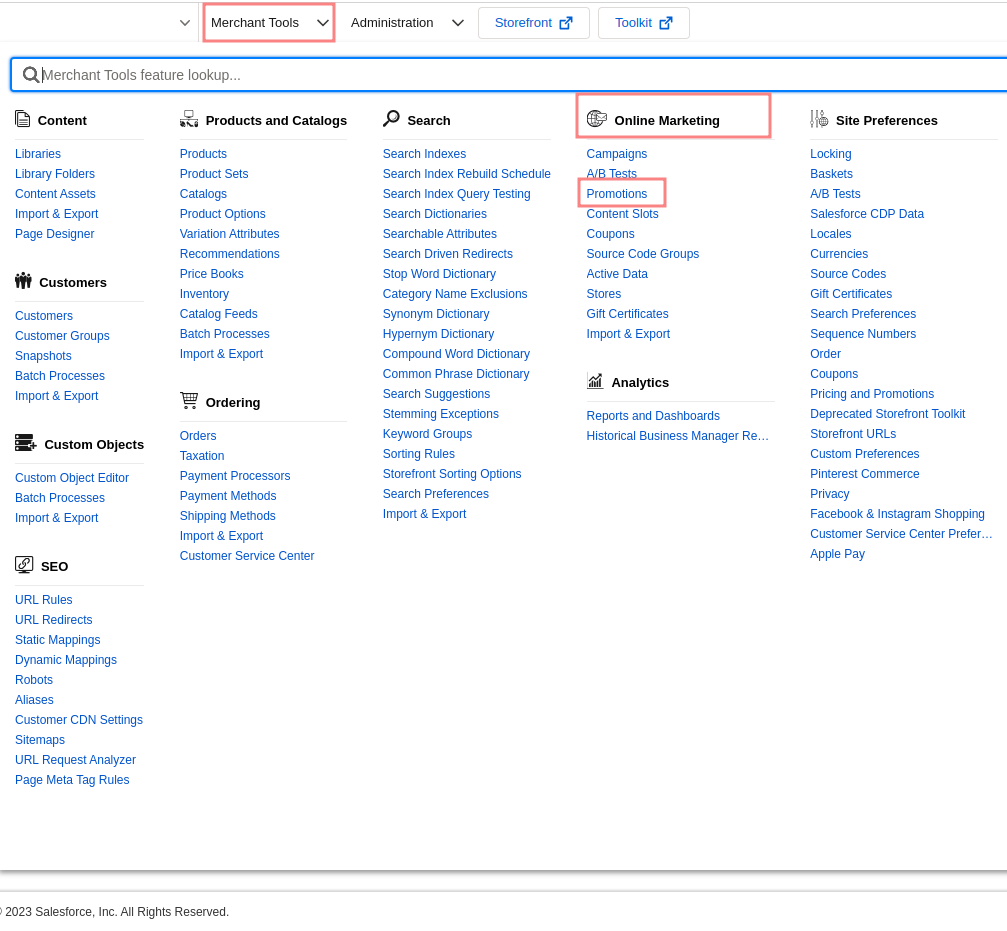
To access the promotions module:
- Log in to your Salesforce Commerce Cloud Business Manager account
- Navigate to Merchant Tools in the top menu
- Select Online Marketing from the dropdown
- Choose Promotions
The Promotions Dashboard
The Promotions Dashboard is your central hub for managing all active and inactive promotions. It provides an overview of each promotion alongside its class, campaign assignment, schedule, and exclusivity settings.
Creating a New Promotion
Click the New button on the dashboard to open the promotion creation wizard.
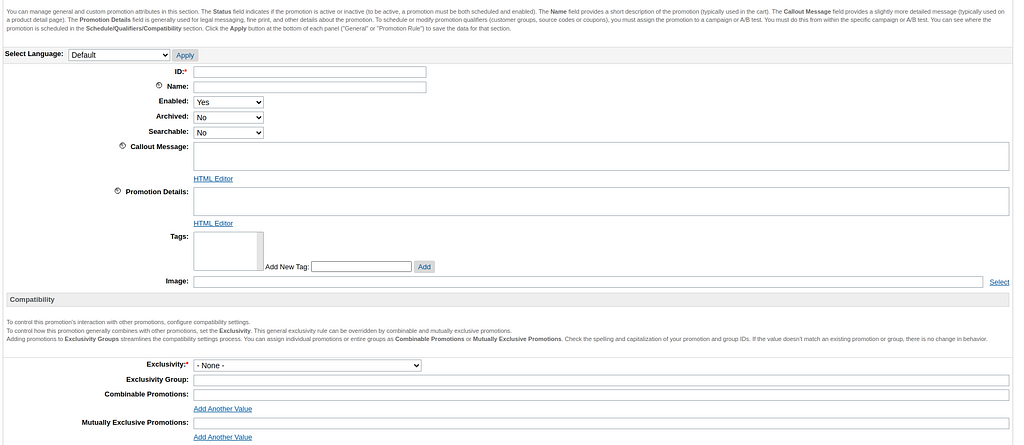
The two required fields are:
- Promotion ID — a unique identifier for this promotion
- Exclusivity — controls how this promotion interacts with others
Exclusivity Options
- No — the promotion can combine with any other promotion
- Class — the promotion cannot combine with other promotions of the same class
- Global — the promotion cannot combine with any other promotion
After completing the required fields, click Apply to proceed to the promotion rule section.
Promotion Classes

Each promotion must be assigned to one of three classes, each with its own set of qualification rules:
- Product — discounts applied at the product or category level
- Order — discounts applied to the entire order (e.g., order total thresholds)
- Shipping — discounts applied to shipping costs
Assigning to a Campaign
Once your promotion is configured, it must be assigned to a campaign to become available to customers. The campaign defines the schedule (start and end dates) and the target audience (customer groups, source codes, coupons). A promotion without a campaign assignment will never be active on the storefront.
Summary
Promotions in SFCC Business Manager are more capable than they first appear. Understanding exclusivity, promotion classes, and the campaign relationship is the foundation for building sophisticated, targeted offers. In later articles, we’ll look at how campaigns can go far beyond basic promotion scheduling.